Download DrawingEz App Today!

Animation brings art to life, and creating a bouncing ball is a classic exercise for mastering this skill. This guide will walk you through creating a ball’s bouncing animation using the DrawingEZ app. Ideal for beginners, this tutorial combines basic physics with artistic techniques.
- Understanding Animation
- Animation is a captivating art form that brings static images to life by creating an illusion of movement. It’s a process of displaying a series of pictures, or ‘frames’, rapidly to create a sequence that appears to the viewer as continuous motion. Here are some key aspects to understand about animation:
- Frame-by-Frame Transition: Each individual image in an animation is called a ‘frame.’ When frames are shown in rapid succession, the human brain blends them together to perceive fluid motion.
- Types of Animation: Animation can be traditional, where each frame is drawn by hand, or digital, where software is used to create and manipulate images. There are also specific types such as 2D, 3D, stop-motion, and motion graphics.
- Key Principles: Animation is guided by certain principles to make it more realistic and engaging. These include timing, spacing, ease in and out, anticipation, follow-through, and exaggeration.
2. Starting Your Project
- Steps to initiate a new project in DrawingEZ: Click the plus icon in the top right of the ‘My Art’ screen, choose ‘Animation’, and select your canvas size.

3. Step-by-Step Guide to Drawing a Bouncing Ball
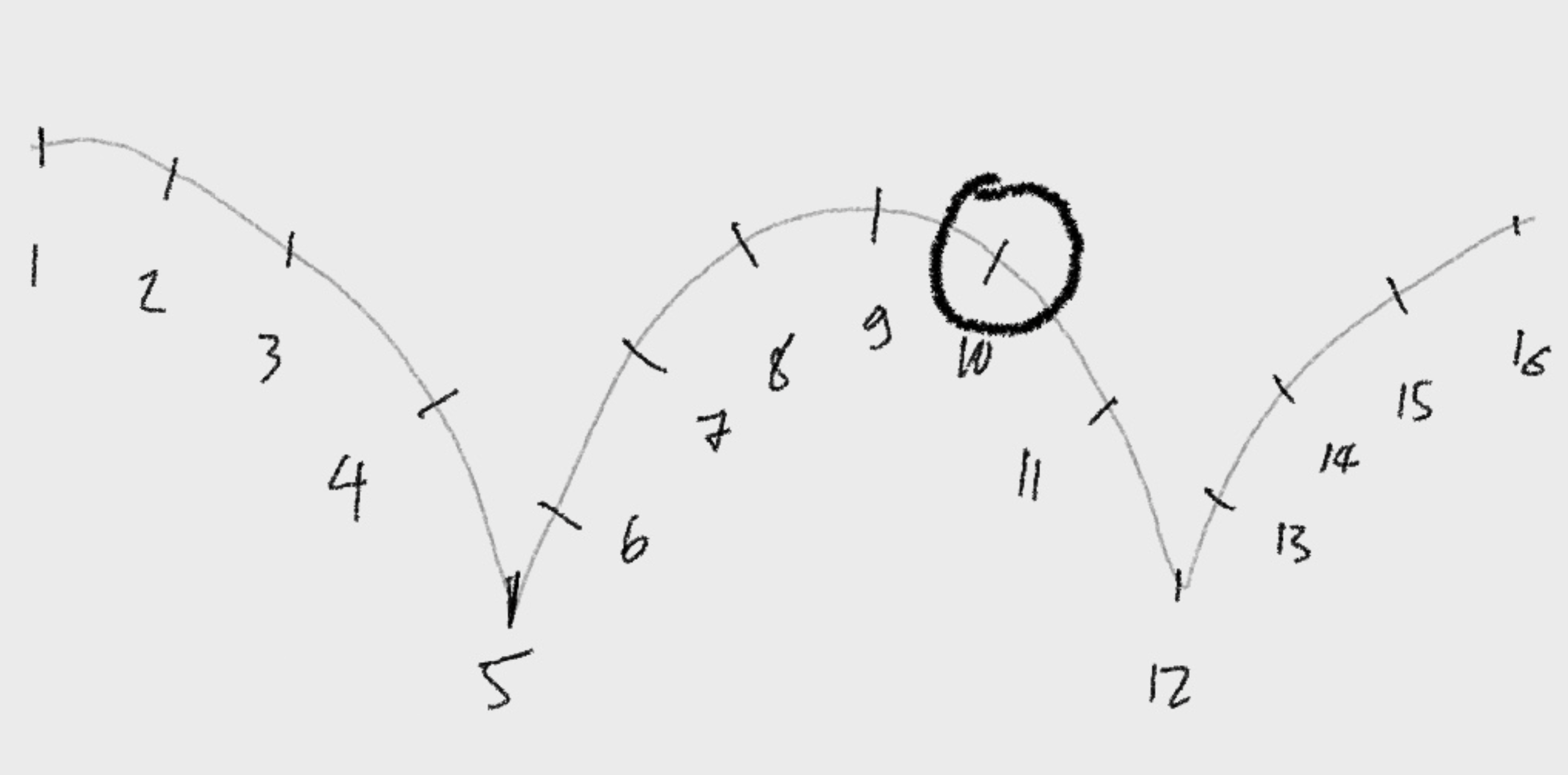
- Plotting the Ball’s Trajectory: Understand how to create a parabolic path for the ball’s bounce.
- Identifying Key Points: Establish 16 key frames for the animation. Use images for each step, illustrating how to place the ball at different stages of its movement.
- Impact of Spacing on Speed: Learn how the spacing between frames affects the perceived speed of the ball. Closer frames make the ball appear to move slower, and wider gaps increase perceived speed.
- Drawing the Ball in Motion: Tips on how to draw the ball at each point, including how to show rotation and deformation on impact.
- Ensuring Smooth Motion: How to adjust frame spacing for a smooth animation flow.
4. Previewing Your Animation
- Instructions to preview your animation in DrawingEZ: Click the settings button and select ‘Play Animation’.
5. Adjusting the Speed Appropriately

- Guide to modifying the animation speed: Click the settings button and choose ‘Animation Speed’, with a maximum support of 60 frames/second.
6. Exporting Your Animation
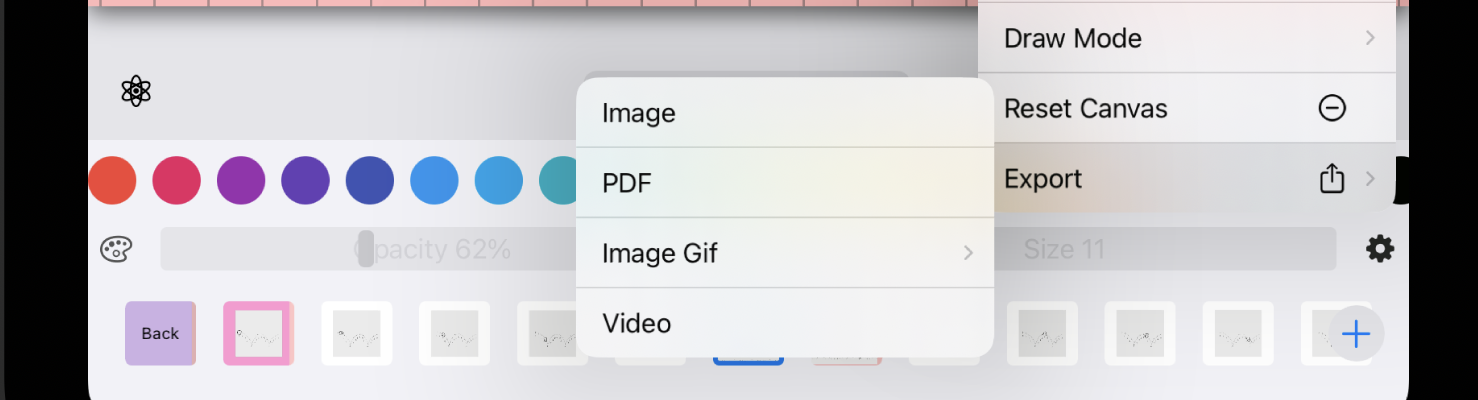
- How to export your animation as a Video, GIF, Image, or PDF: Click the settings button and select ‘Export’. Choose your desired format.


 DrawingEZ
Leave a reply to Danna Cancel reply